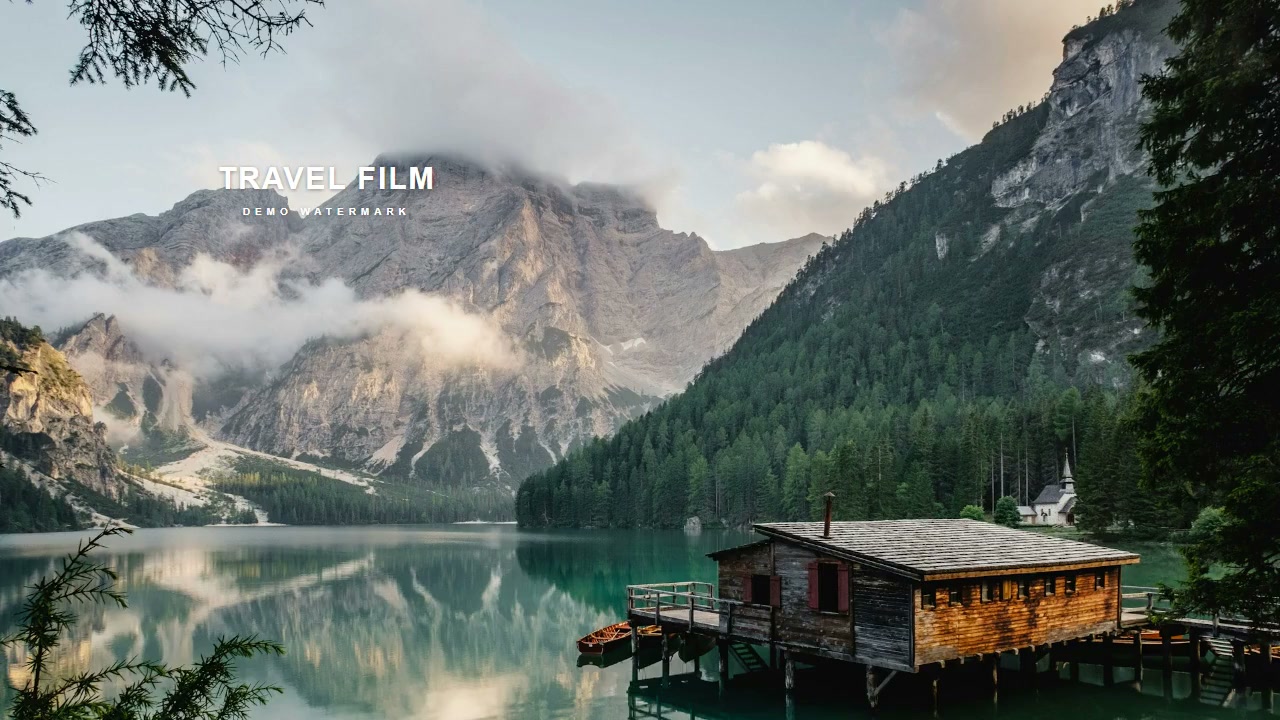
Rectangles and brushes. A better fit.
Use rectangles for regular watermarks and paint irregular shapes with a brush. Adjust the size, erase or undo until the mask fits the area you want to repair.
Remove video watermarks, subtitles and local distractions on your computer.
Preview first. Export when ready. Your footage and AI processing stay local.
 FrameRefine Alpine travel film
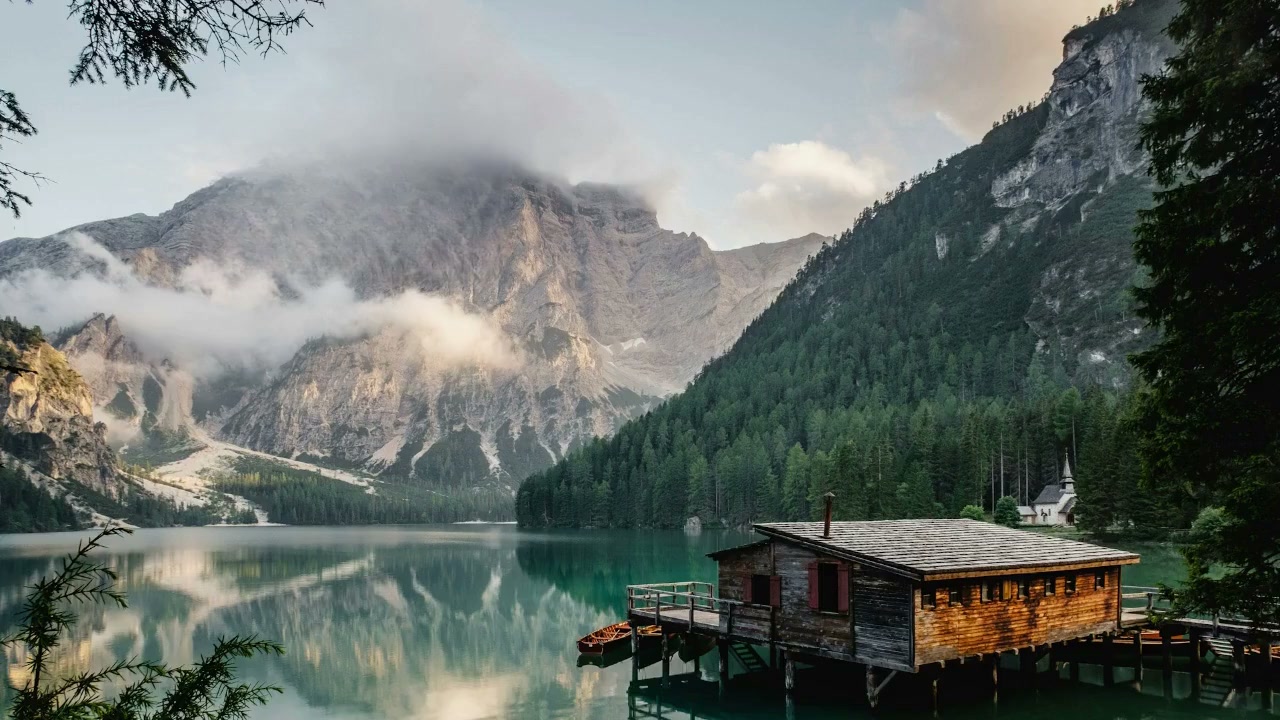 BeforeAI Detail Repair · Actual result
01 / VIDEO WATERMARK REMOVAL
Compare the same frame before and after repair.
Watermarks, subtitles and local obstructions.
Start with the area you select.
Source with demo watermarkAI Detail Repair · Actual result
We added a demo watermark to a landscape image and repaired the selected area with FrameRefine. The comparison shows the same input frame and its actual export. Inpainting does not restore the exact texture that was hidden.
This sample uses a landscape photo with an added demo watermark. Both images are from the same frame before and after an actual FrameRefine export. It represents this static sample only, not motion footage, other videos or every repair mode.
02 / LOCAL AI REPAIR MODES
AI inpainting, nearby frames, fast filling or a new background.
Choose a mode that fits the obstruction and the scene.

DETAIL FIRST
Rebuild missing areas using the surrounding image. A good starting point for detailed watermarks, subtitles and local obstructions. This mode prioritizes texture and usually takes longer.
Inpainting does not recover the exact hidden pixels. Preview the result before exporting.
03 / AREA AND TIMING CONTROL
One small obstruction should not change the whole frame.
From mask shape to active times, keep every repair precise.
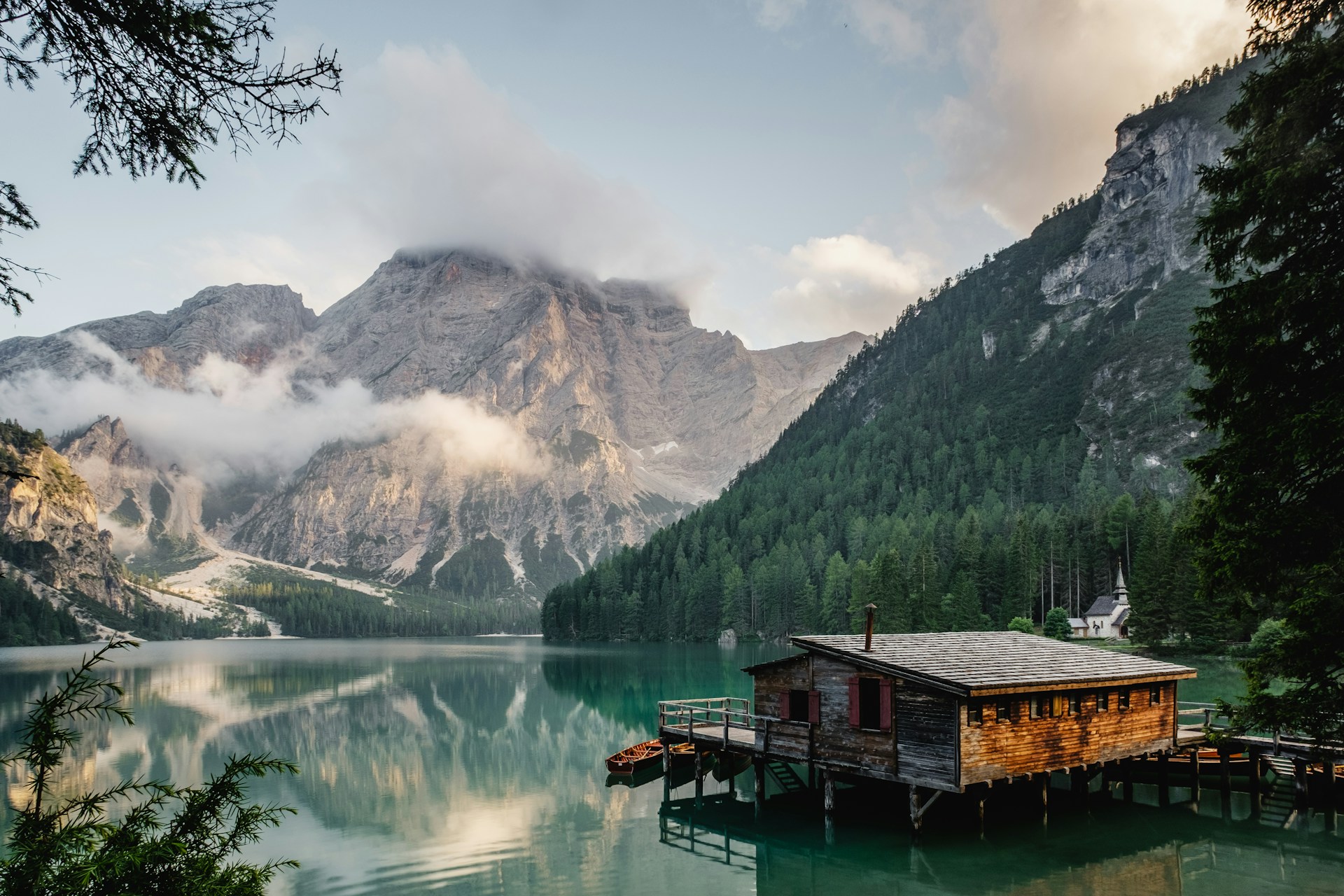 Selection demo · Try drawing on the image
Use rectangles for regular watermarks and paint irregular shapes with a brush. Adjust the size, erase or undo until the mask fits the area you want to repair.
Give each region its own active time ranges. If a subtitle appears for a few seconds, repair only those seconds.
Record a rectangle at different times and interpolate between its keyframes. Repeat the path or use a ping-pong loop, without drawing a new region on every frame.
You mark the path manually; it is not automatic tracking. Brush masks do not currently follow moving paths.
04 / FROM FOOTAGE TO FINISH
Import a local video, play it or step through frames. Editing proxies can make high-resolution footage easier to work with while you select repair areas.
Local import · Find your frameDraw or paint a region, set its active times and choose a repair mode. Preview and compare the result before you commit to the full export.
Select an area · Compare resultsExport the complete video when you are ready. Repairs use the source resolution, prioritize keeping the original audio, and show progress and elapsed time.
Local export · Keep editing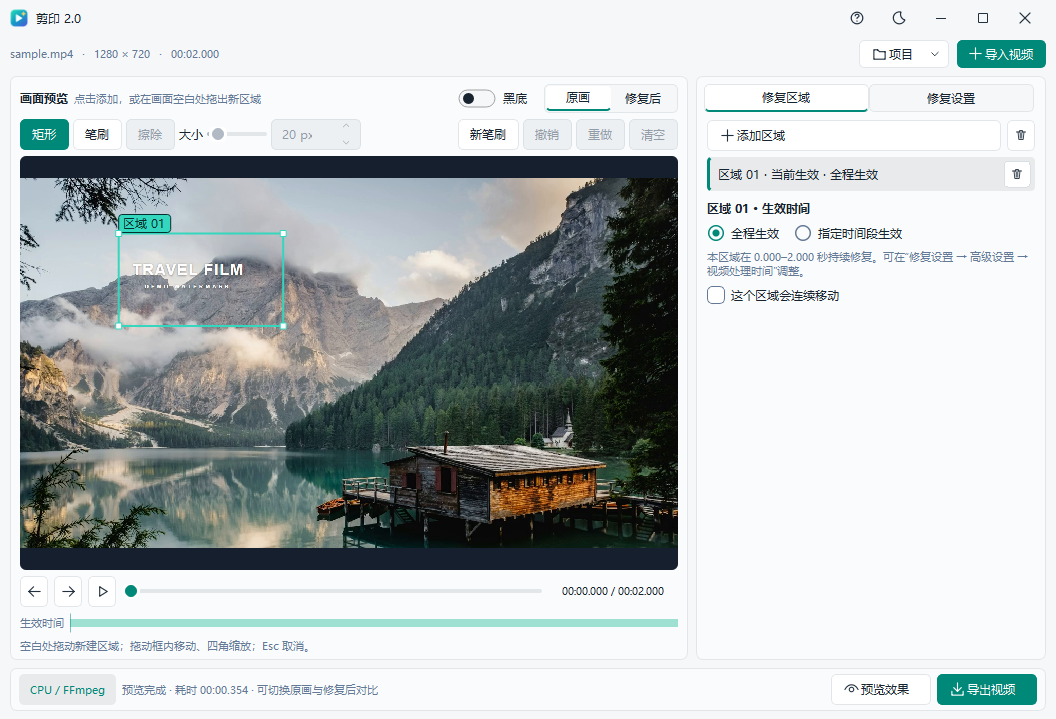
VIDEO WATERMARK REMOVAL FAQ
Clear answers. More room to create.
FrameRefine is a Windows desktop app. This website explains the product and demonstrates its controls; it does not upload or repair your videos. Actual processing happens in the app on your computer. The screenshot shows the current Windows interface in Chinese.
Try Quick Area Repair for small marks and simple textures, or AI Detail Repair for complex watermarks and subtitles. Use Multi-frame AI Repair when nearby frames reveal useful background. For a fixed camera with people in the scene, or a new background, try the corresponding people-preserving mode. Compare the same frame before choosing.
Not necessarily. Fully covered information may be impossible to recover; the model fills it using surrounding content. Large obstructions, complex motion, scene cuts and fine textures can affect results. We label actual exports separately from interactive illustrations. One static sample does not represent every video.
You can import high-resolution video and use a lower-resolution editing proxy for playback and seeking. Repair and export still read the original frames. Automatic acceleration uses DirectML, with a CPU option available. Speed depends on memory, GPU, resolution, region count and repair mode; real-time 4K processing is not guaranteed.
Use the brush for irregular masks. Moving rectangles can use position keyframes, interpolation and repeating paths. You mark the path manually; this is not automatic object tracking. Brush masks stay at fixed positions, and Quick Area Repair only supports static rectangles.
Use Download in the header or a platform button to view the available options. Once you have the installer, follow its instructions to open FrameRefine, import your video, select repair areas and export locally. Choose a package that matches your operating system.
LESS DISTRACTION. MORE CREATION.
Keep what matters. Clear the distractions.
Windows desktop · Local AI · No footage upload